Cadence setup
Create a new project library
Navigate to ~/Cadence. Open Virtuoso by typing virtuoso &. From the main Virtuoso window, navigate to File → New → Library to open the Library Manager. Enter the desired library name (e.g., ER_ASIC_Rev1_Tapeout), and select "Attach to an existing technology library." Attach the new library to the tsmcN65 technology library in the subsequent window.
To open the library, from the main Virtuoso window, navigate to Tools → Library Manager.
Import GDS files to Cadence
Now, you will need to import the GDS files, including the pad-level GDS, into Cadence. From the main Virtuoso window, navigate to File → Import → Stream. Fill in the dialog accordingly:
- Stream File:
DigitalCorePads.gds2 - Library: ER_ASIC_Rev1_Tapeout
- Top Cell: DigitalCorePads
- Attach Tech Library: tsmcN65
- Layer Map → File Name:
TSMC_65nm_PDK/tsmcN65/tsmcN65.layermap
The following image shows this example in Cadence:
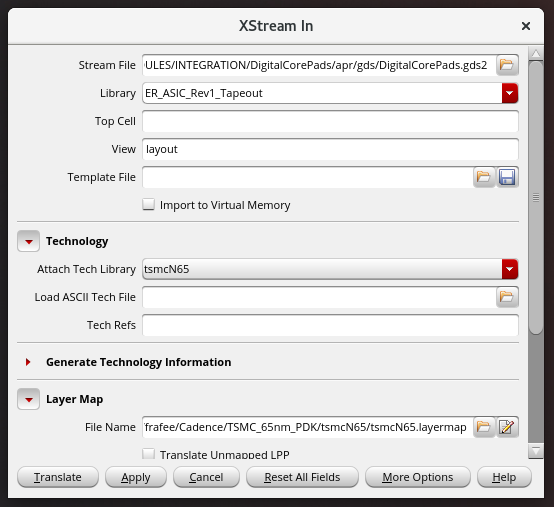
Note that for Stream File, the expected file suffix may not match that generated by Innovus (e.g., gdsII, gds2). Change the file type selection to All Files to find the file correctly. Repeat this process for all .gds files:
- Technology:
/afs/eecs.umich.edu/kits/ARM/TSMC_65gp/sc_rvt/aci/sc-ad10/gds2/tsmc65_rvt_sc_adv10.gds2
- Pad cells:
~/ER_ASIC_Rev1/PADS/TSMCHOME_GDS/digital/Back_End/gds/tpfn65gpgv2od3_200c/mt_2/9lm/tpfn65gpgv2od3.gds
- Standard cells:
~/TSMC_65nm_IO/IO/tpbn65v_200b/tpbn65v_200b_gdscup9m6x1z1u/.../tpbn65v.gds
- Seal ring:
~/65NM_PDK_ZIP/65 MS RF GP/DRM & Sealring/tn65cldr001_2_5/N65_Mu_SR_03152013.gds